How to Make a US Map with Colored States
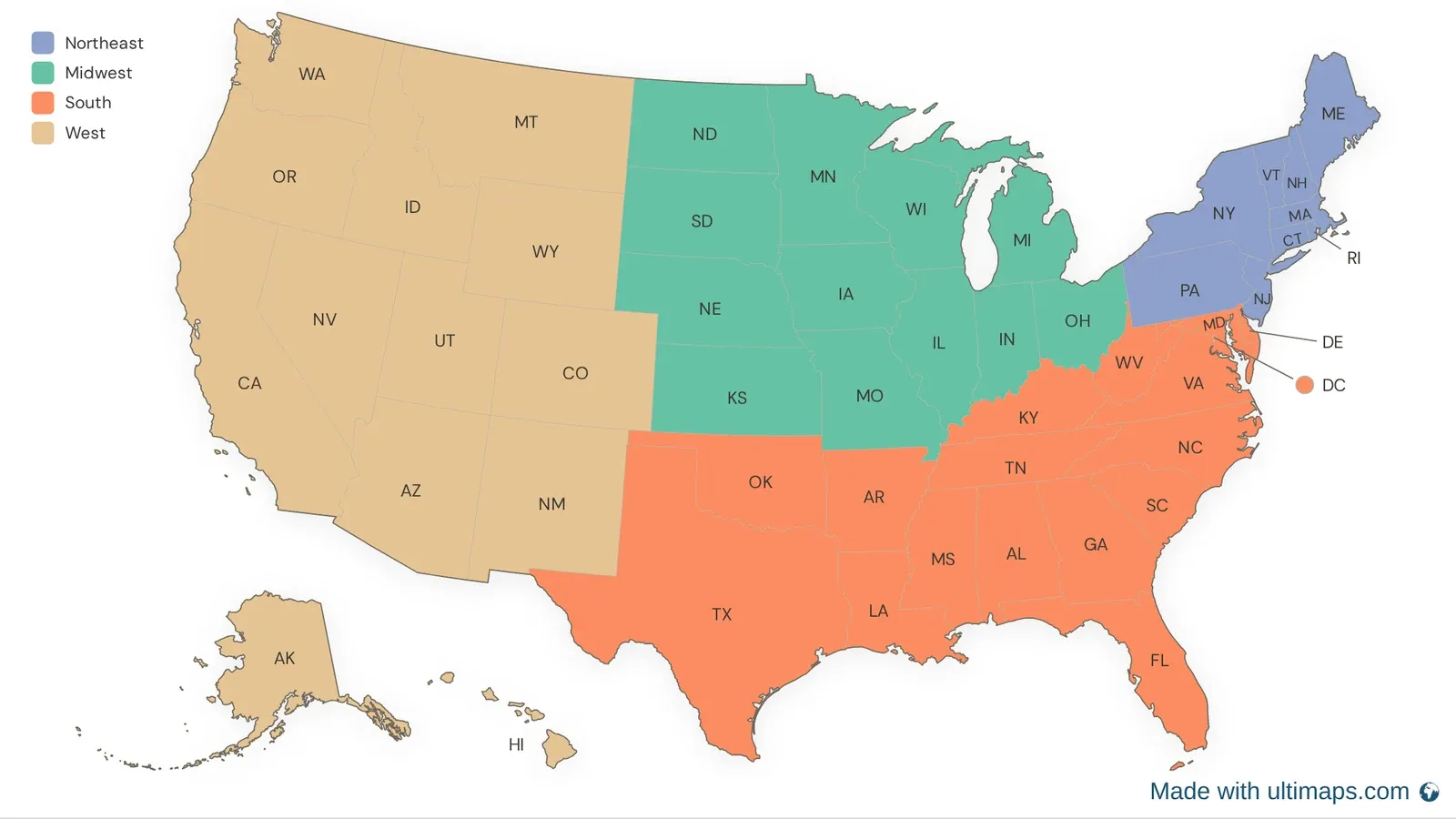
A US map with colored states shows how states group together: sales territories, election results, the states where you have customers, or the states you've visited. This tutorial shows you how to make a color-coded US map in Ultimaps Studio, from a blank map of the 50 states to a finished map with a legend and state labels.
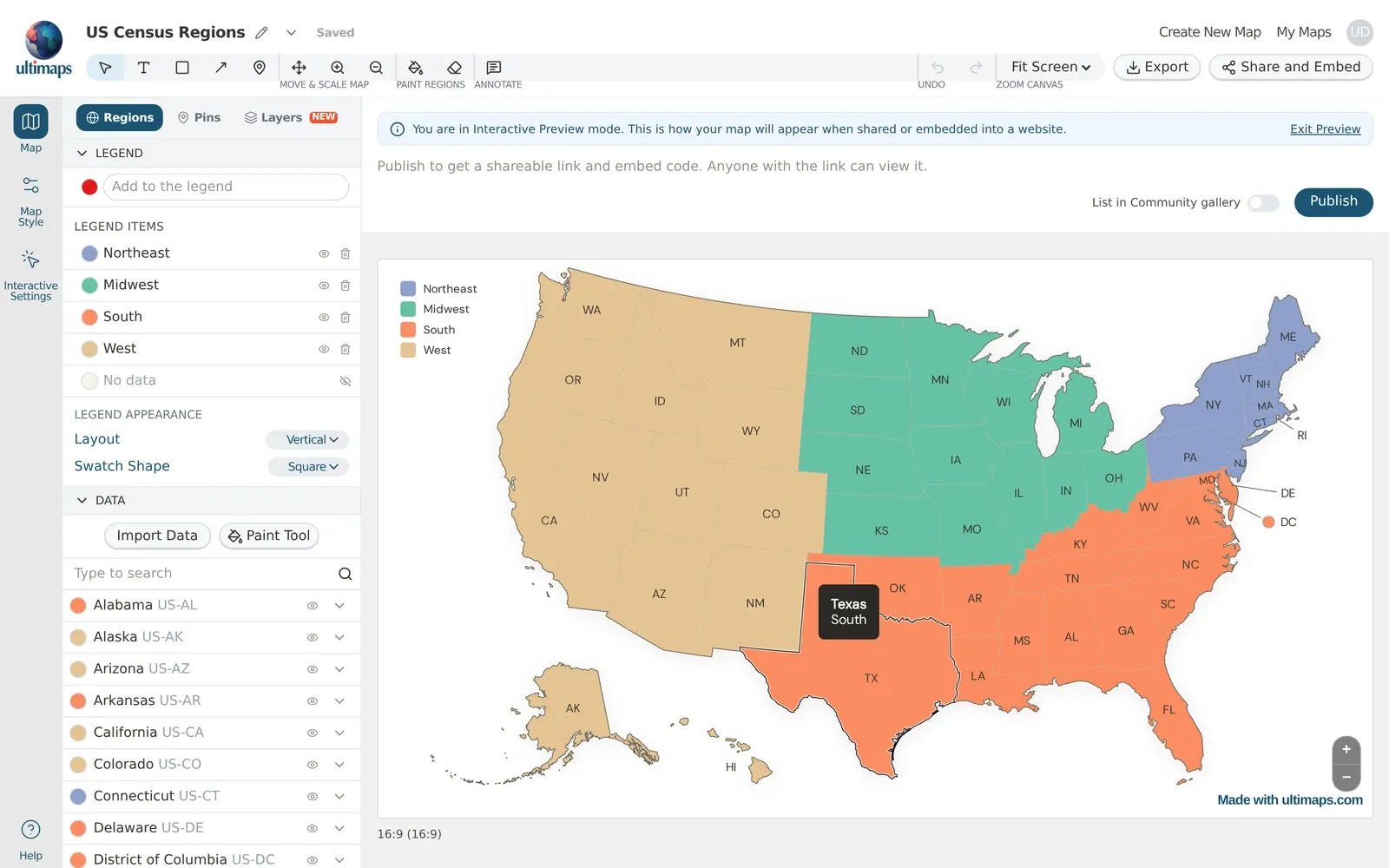
As an example, we'll color the four US Census regions: the Northeast, the Midwest, the South and the West. This is the map you'll end up with:
You can download the result as an image or PDF for slides, reports and print, or publish it as an interactive map that you share with a link or embed on your website.
What you'll need
- A browser. Ultimaps Studio runs online, so there's nothing to install.
- The list of states you want to color, and the group each one belongs to.
- A free account if you want to save the map or publish it. You can start without one.
Two ways to color the states
- Color states by hand. Click each state to fill it. This is the quickest way for a handful of states, and it works fine for all 50.
- Import a spreadsheet. Upload a list of states with a group or value for each, and Ultimaps colors the map for you. This is faster when you already have the data, and it's the way to go for numbers like population or sales.
We'll start by hand, then show the spreadsheet route.
Ultimaps Studio is a map visualization tool that allows you to create and customize maps and charts right in your browser. Sign-up is not required.
Step 1: Open a blank US map
Go to studio.ultimaps.com and type "united states" in the search field. Pick United States — States and click Open in Editor.
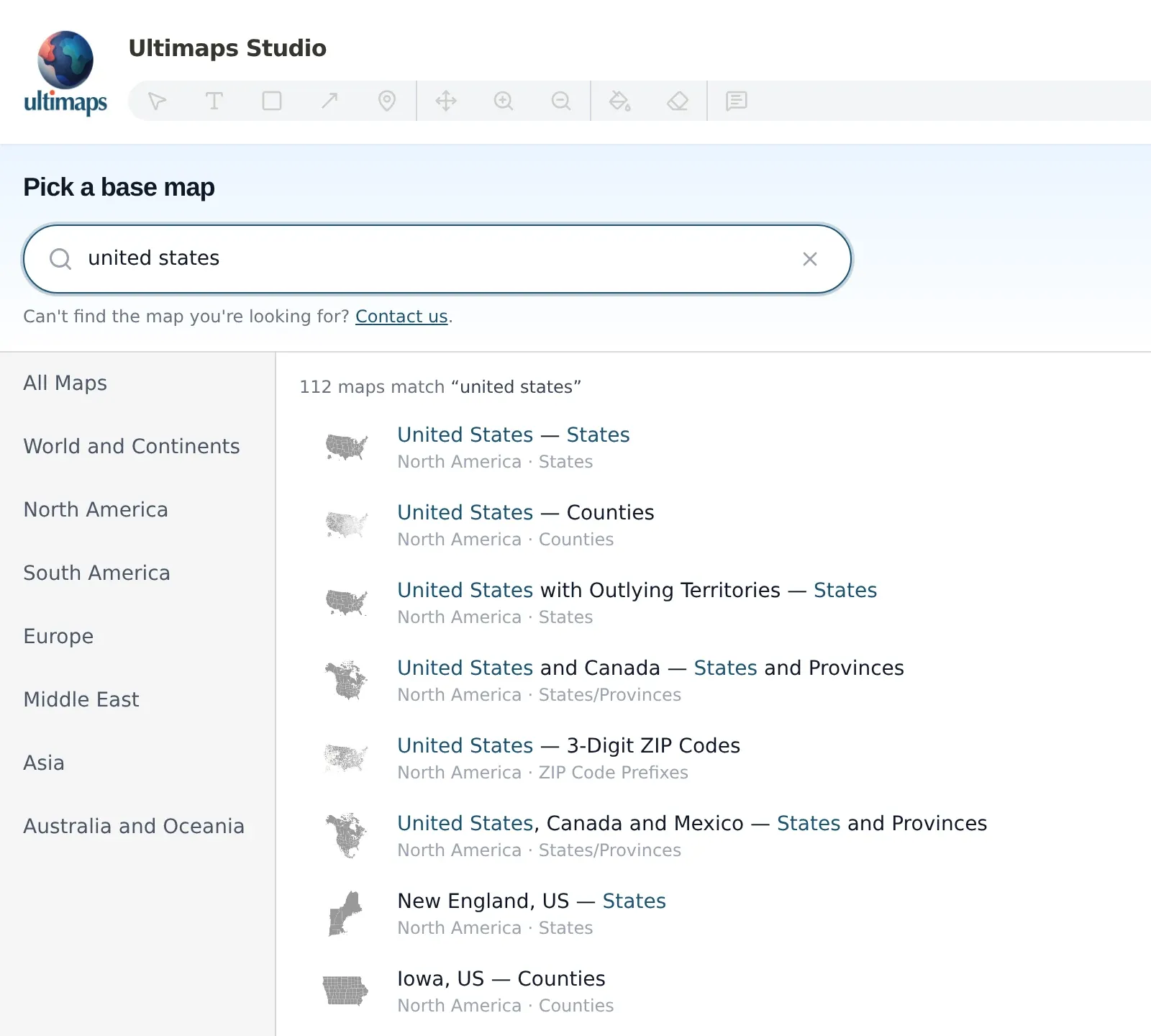
This map has all 50 states plus Washington, DC. Alaska and Hawaii sit below the mainland, and DC is shown as a dot with a label so it's easy to click. The search results also include other US maps:
- United States with Outlying Territories — States adds Puerto Rico, Guam, the US Virgin Islands, American Samoa and the Northern Mariana Islands.
- United States — Counties shows all 3,000+ counties.
- United States and Canada and United States, Canada and Mexico add the neighboring countries.
Step 2: Color the states
The Studio opens with a How do you want to start? panel. Click Color Manually.
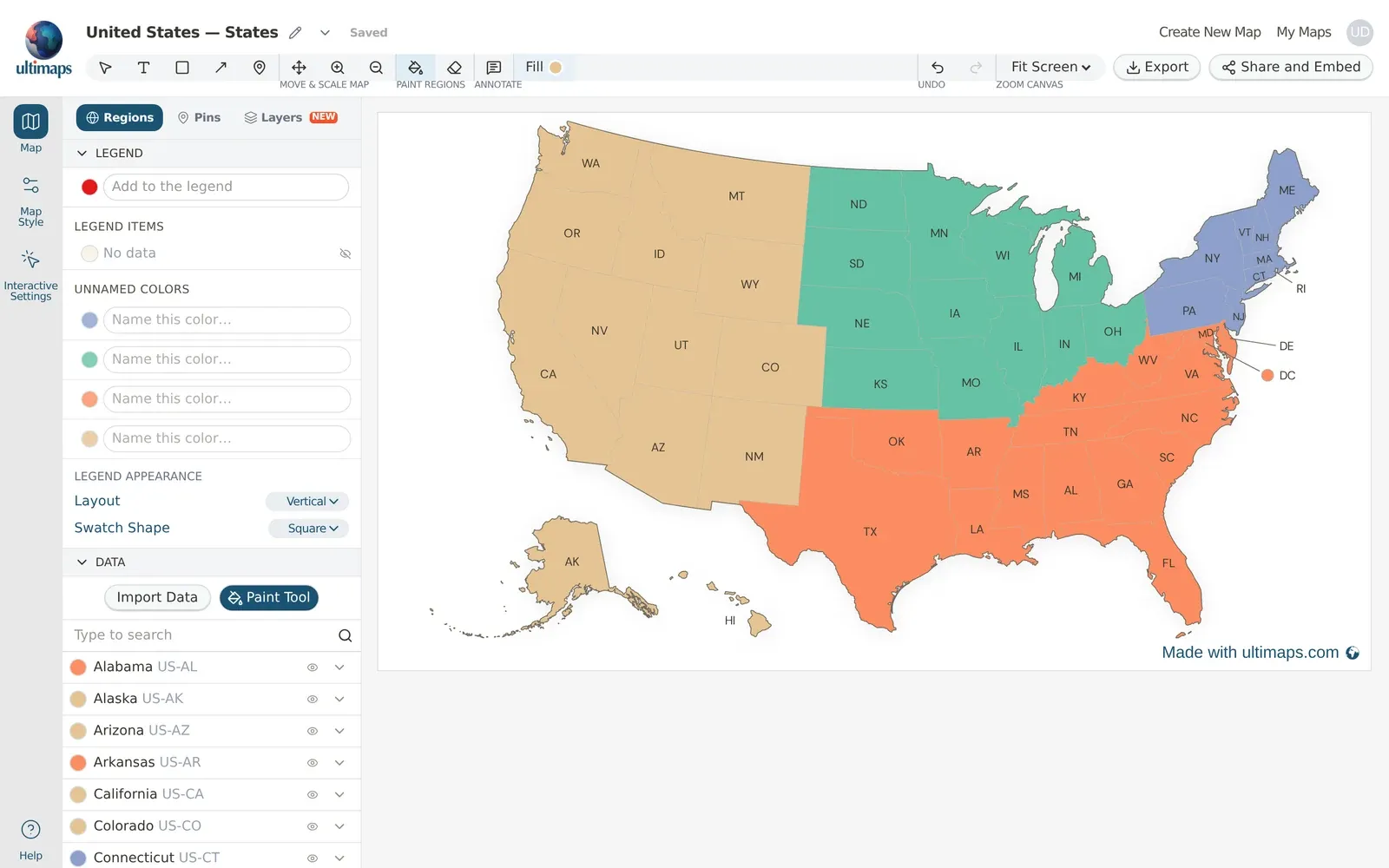
Then click Paint Tool in the Regions tab. The Fill color appears in the toolbar.
- Click the color dot next to Fill and pick a color from the Palette, or type a hex code. We used blue (#8DA0CB) for the Northeast.
- Click each state in the first group. For the Northeast, that's Connecticut, Maine, Massachusetts, New Hampshire, New Jersey, New York, Pennsylvania, Rhode Island and Vermont.
- Pick the next color and click the states in the next group. Repeat for each group. We used green (#66C2A5) for the Midwest, orange (#FC8D62) for the South and tan (#E5C494) for the West.
Small states like Rhode Island and Delaware are easier to hit if you zoom in first with the zoom buttons in the toolbar. If you click the wrong state, hold Shift and click it again to clear it.
The map starts in the Paper theme. To change the overall look, open Map Style in the left rail and pick another Theme before you start coloring, because changing the theme later replaces your map's styles.
Step 3: Add a legend
Every color you use shows up in the Legend section of the Regions tab, under Unnamed colors. Type a name next to each color and press Enter. We used "Northeast", "Midwest", "South" and "West".
As soon as you name a color, it moves to Legend Items and the legend appears on the map. Click the legend to select it, then drag it wherever you want it. On the US map, the top left corner is usually free. Legend Appearance lets you switch the layout between vertical and horizontal and change the swatch shape.
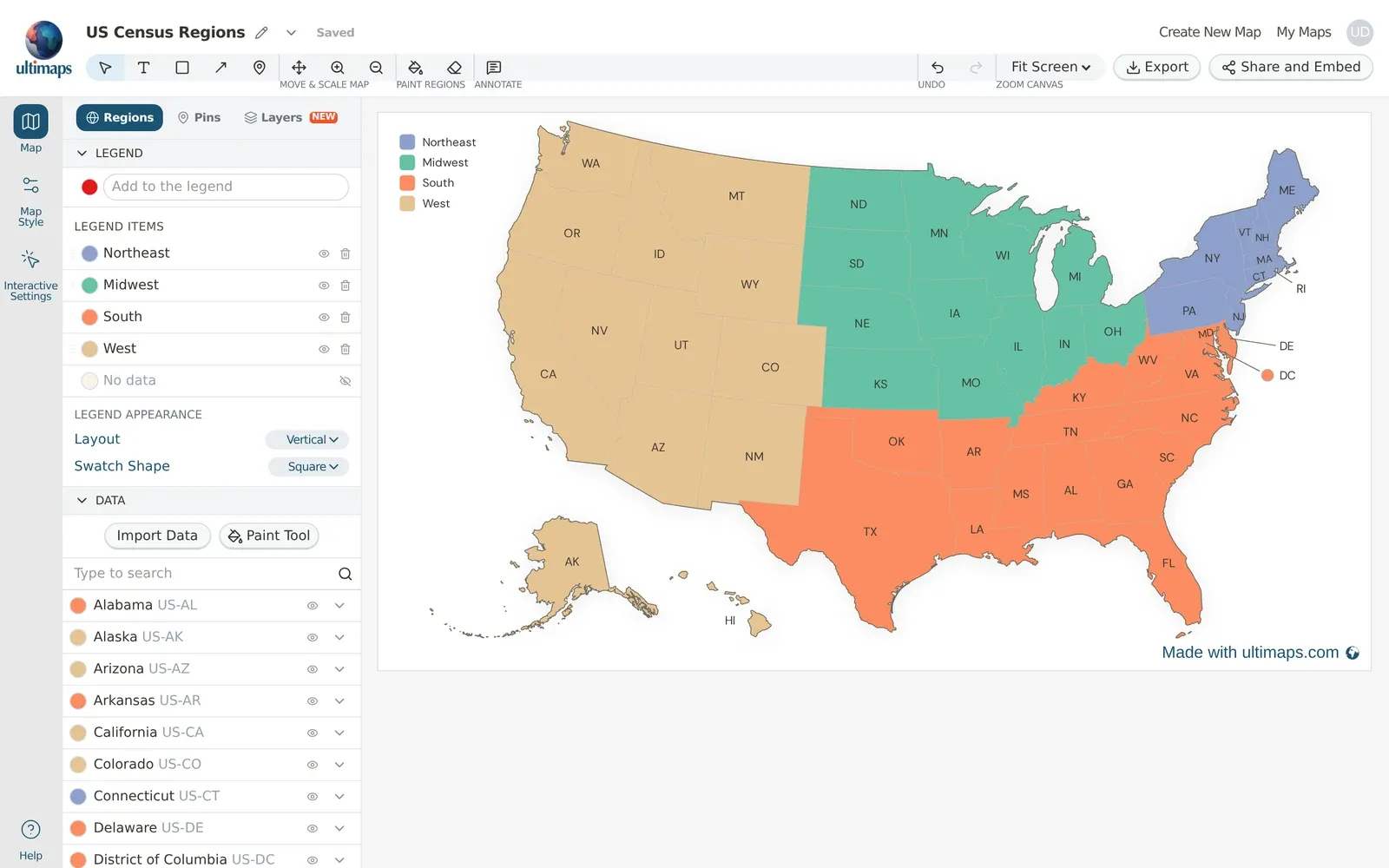
To change a group's color later, click its color dot under Legend Items and pick a new one. Every state in that group updates at once.
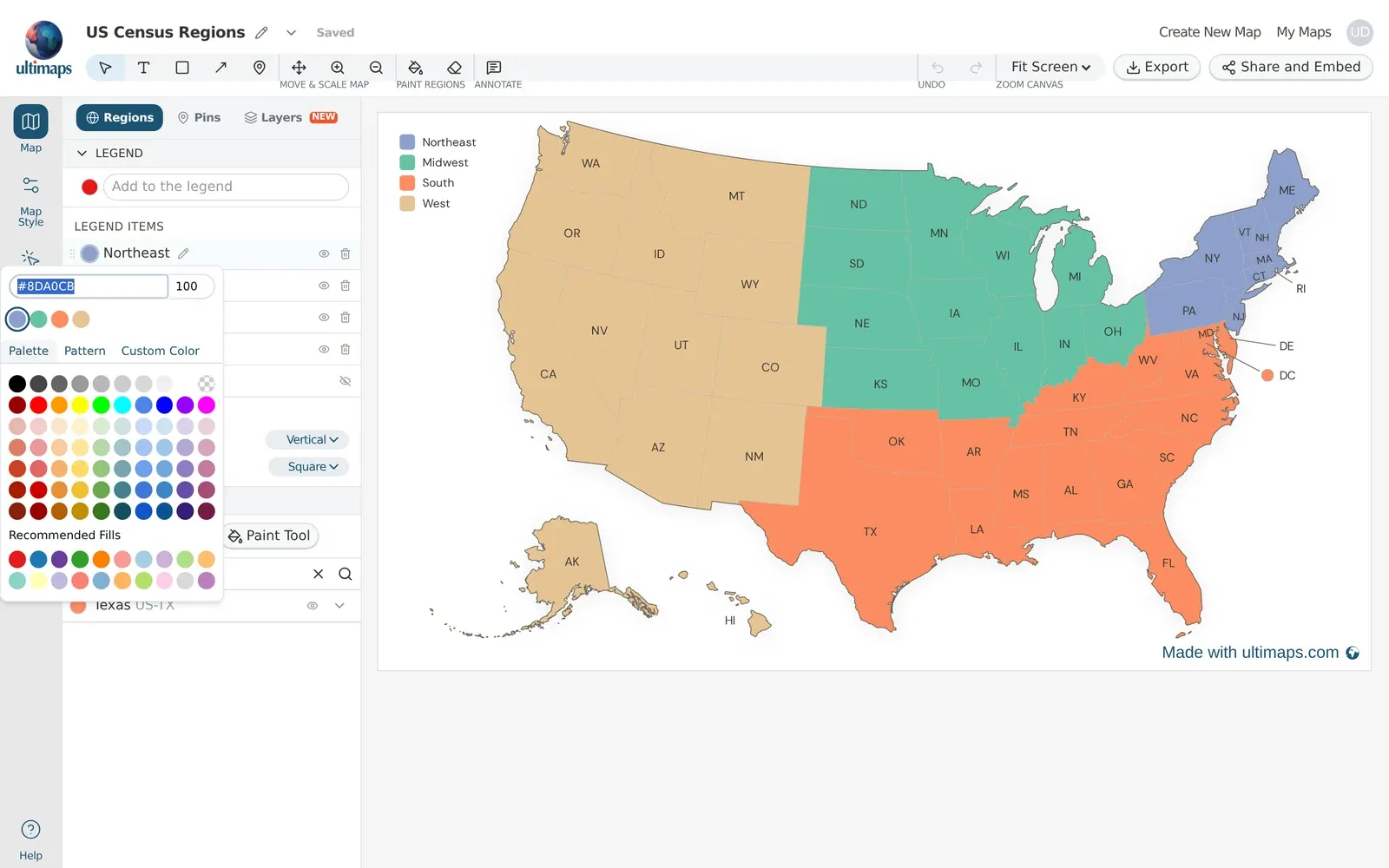
The same picker has a Pattern tab, for stripes or dots instead of a solid color. Patterns help when a map is printed in black and white, or when one group needs to stand out from the rest.
Give your map a name, too. Click the pencil next to the title at the top of the Studio and type a new one, for example "US Census Regions".
Step 4: Show state labels
State labels are on by default and show each state's postal abbreviation, like CA and TX. Label colors switch between dark and light automatically so they stay readable on every fill.
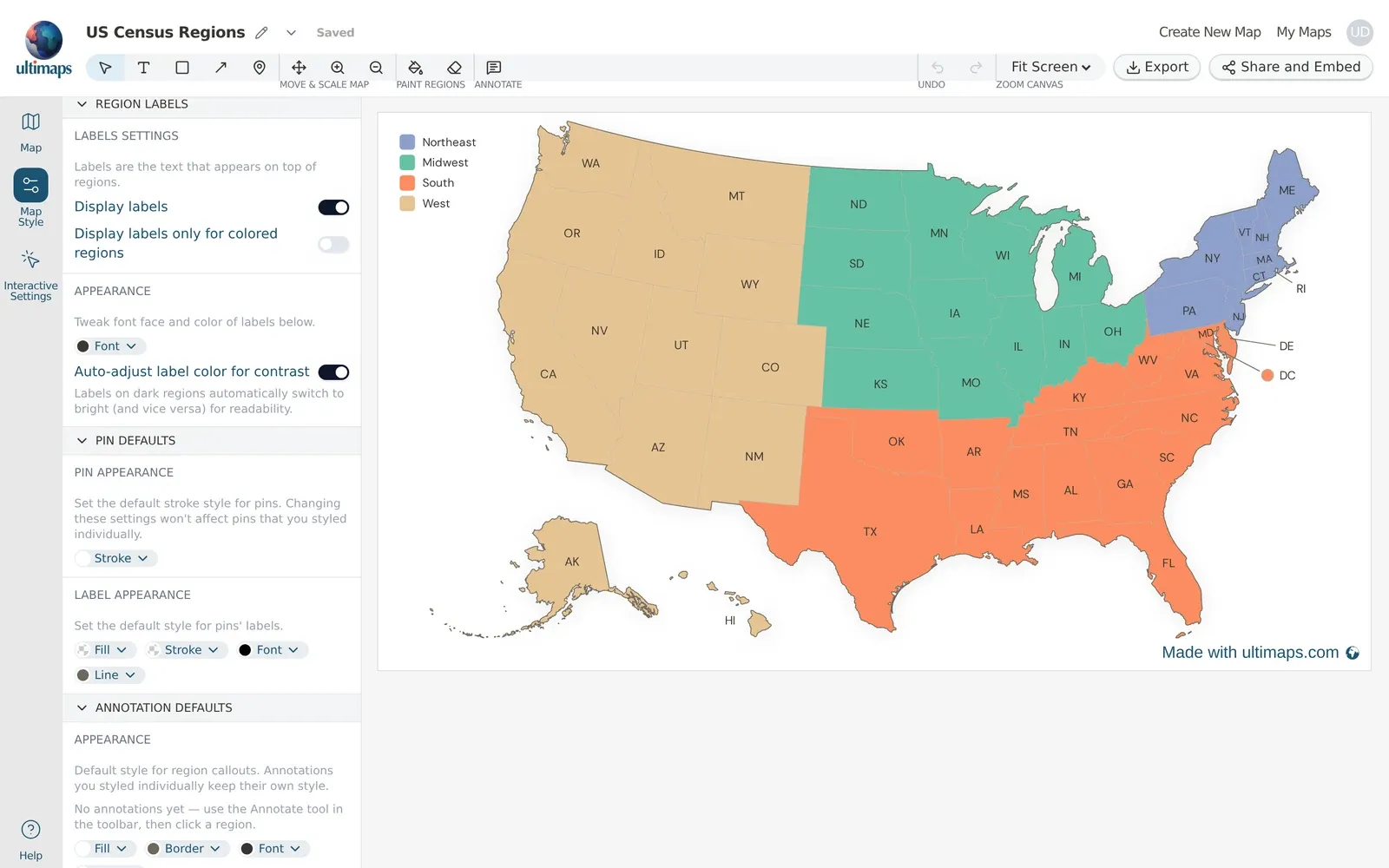
To change them, open Map Style in the left rail and scroll to Region Labels:
- Display labels turns all state labels on or off.
- Display labels only for colored regions hides the labels on states you haven't colored.
- Font changes the label typeface, size and color.
To change a single label, click it on the map. You can edit its text, drag it to a new spot, or hide it. The smallest states, like Rhode Island and Delaware, have their labels outside the state with a line pointing to it.
Color the states from a spreadsheet instead
If you have the list in a spreadsheet, you can skip the clicking. Add a header row with two columns, State and Region. Then put one state per row, with its group in the second column: "Alabama" and "South", "Alaska" and "West", and so on.
Then:
- Open a new US map and click Upload File on the How do you want to start? panel. If your map is already open, click Import Data in the Regions tab.
- Drop your CSV or Excel file into the upload area, or paste a Google Sheets link.
- Check the Review Data screen. State names are matched automatically, including abbreviations like "TX" and "NY". Rows that were corrected or not found are flagged so you can fix them.
- Click Apply to Map.
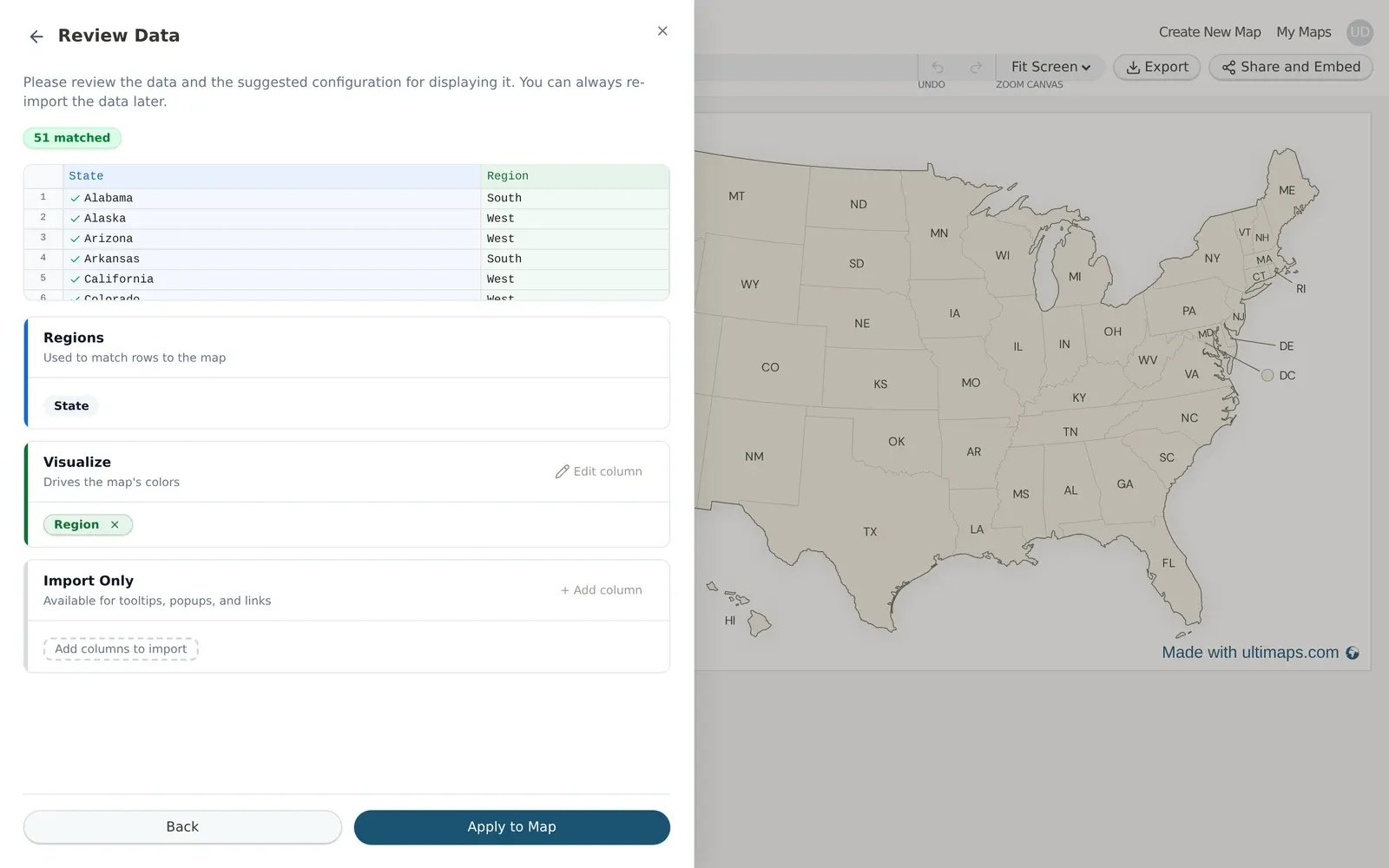
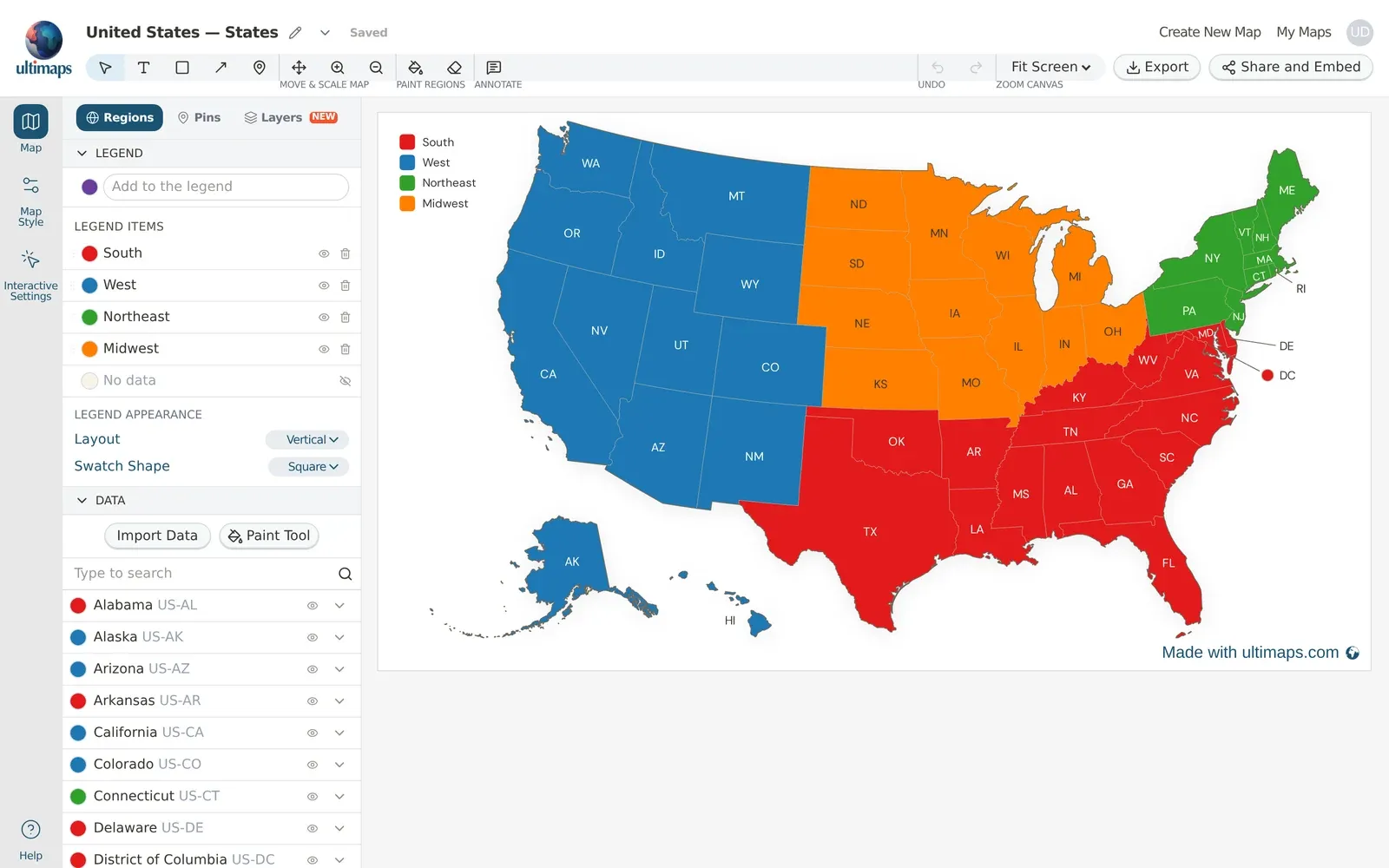
Because the Region column contains text, each group gets its own color and a legend item named after it. Click a color dot under Legend Items to change a group's color, just like with hand-colored maps.
If your column holds numbers instead, such as population or sales, the states are colored on a gradient from low to high. Getting Started shows this with a map of median household income by state.
You can also describe the map to the AI instead. Click Use AI and type something like "Color the US states by Census region." You'll get the same review screen before anything is applied, and everything the AI creates stays editable.
Step 5: Download or share your map
To download it, click Export in the top right corner:
- Free download gives you a PNG at screen size with a small "Made with ultimaps.com" watermark.
- Professional is a one-time 24-hour pass for this map (€12.50). It gives you a high-resolution PNG, SVG and PDF, with no watermark and full commercial use. Use this for print.
To share it, click Share and Embed in the top right corner. The canvas switches to a preview of the interactive map. Hover over a state to see its name and group. Then click Publish to get a link and embed code for your website. Publishing needs a free account.
FAQ
How do I make a color-coded US map for free?
Open Ultimaps Studio, pick United States — States, and click states to color them. Name each color to build the legend, then click Export and choose Free download for a PNG. You don't need an account to make and download the map.
Can I make a map of the states I've visited?
Yes, it's the same workflow. Open United States — States, click Color Manually, and click each state you've been to. Then name the color "Visited" under Unnamed colors so it shows in the legend. Add a second color, like "Lived here" or "Want to visit", if you want. Download it as a PNG, or publish it and share the link.
Can I color counties instead of states?
Yes. Pick United States — Counties for every county in the country, or search for a state, like "Texas counties", to get a map of one state's counties. Coloring works the same way. With thousands of counties, a spreadsheet is usually faster than clicking.
Does the map include Alaska, Hawaii, DC and Puerto Rico?
United States — States includes all 50 states, with Alaska and Hawaii shown below the mainland, plus Washington, DC. For Puerto Rico and the other territories, pick United States with Outlying Territories — States.
Can I print a US map with colored states?
Yes. The free PNG works for a quick print. For posters, reports or classroom handouts, the Professional export gives you a high-resolution PNG and a PDF without the watermark. If you only need an uncolored outline to color in by hand, download one from blank US maps.
Can I make the US map interactive?
Yes. Click Share and Embed and then Publish. Viewers can hover over states to see their name and group, and you can add popups and links in Interactive Settings. Paste the link into Notion, WordPress, Ghost or Substack, or use the embed code on any website.
Is there a quicker way to color in a few states?
For a quick one-off image, try the free US Map Maker. Click states to color them, add a legend, and download a PNG.
Next steps
- Getting Started: every way to color a map, plus styling, export and sharing in more detail.
- How to make a color-coded world map: the same workflow for the countries of the world, with pins.
- Map of the United States and United States counties: the base maps used in this tutorial.