How to Make a Map with Pins (from a List of Addresses)
A map with pins shows where things are: your offices, customer sites, event venues, or the places on a trip. This tutorial shows you how to make one in Ultimaps Studio. You'll add pins by typing an address, import a whole list from a spreadsheet, give your key pins emoji or text icons, add a title, and then download or share the map.
Ultimaps puts your pins on a clean map of states or countries, with no streets behind them, so it works well for slides, reports, print and websites.
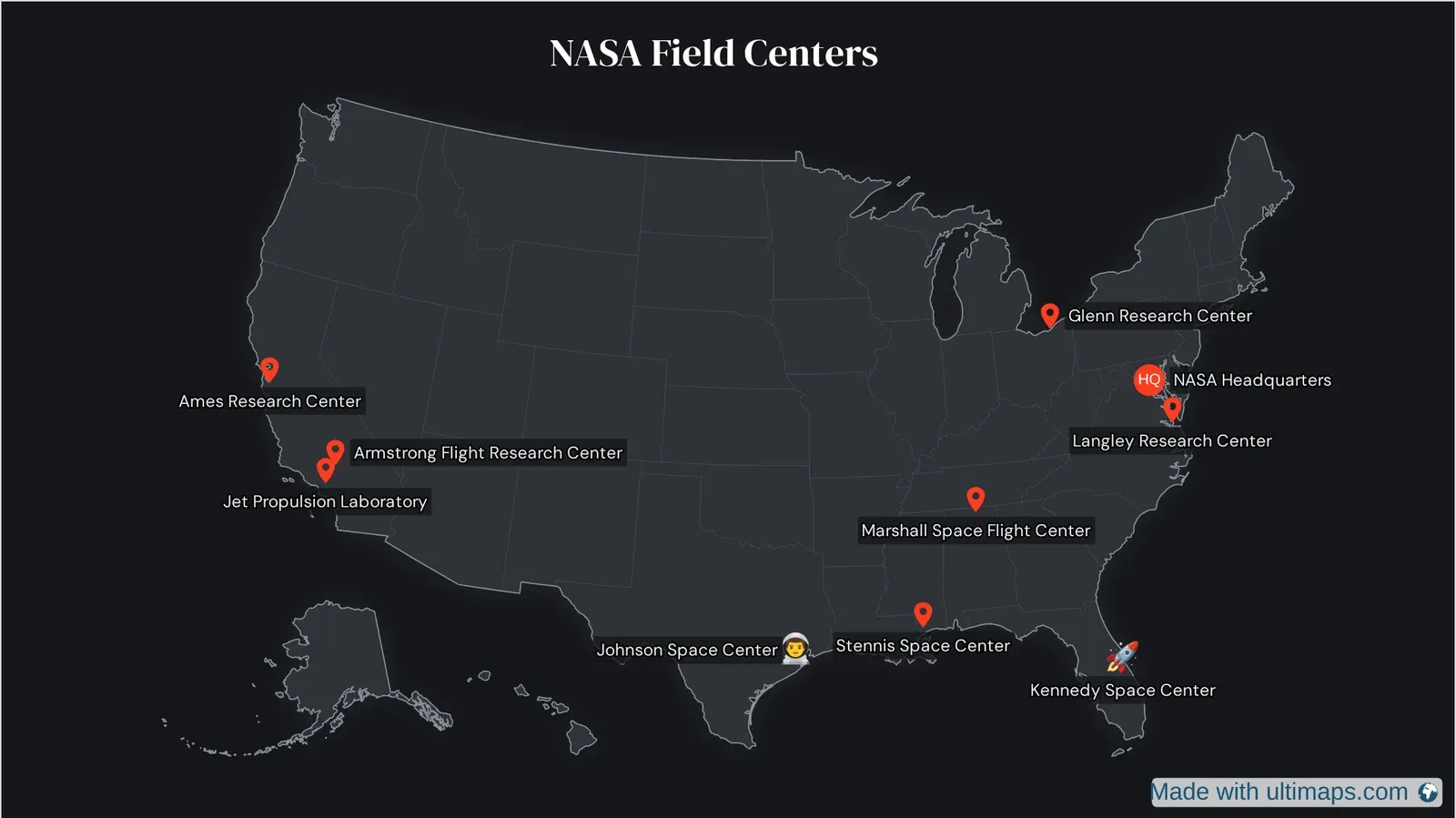
As an example, we'll pin NASA Headquarters and nine NASA field centers on a dark US map. This is the map you'll end up with:
What you'll need
- A browser. Ultimaps Studio runs online, so there's nothing to install.
- Your locations. A few addresses you can type in, or a list in a CSV file, an Excel file, a Google Sheet or a Notion table.
- A free account if you want to save the map or publish it. You can start without one.
For the example, we used a CSV with two columns, Address and Name, and one row per center. In the file, the address comes first and the name second:
- Ames Research Center: Moffett Field, CA
- Armstrong Flight Research Center: Edwards, CA
- Jet Propulsion Laboratory: Pasadena, CA
- Johnson Space Center: Houston, TX
- Marshall Space Flight Center: Huntsville, AL
- Stennis Space Center: Hancock County, MS
- Kennedy Space Center: Merritt Island, FL
- Langley Research Center: Hampton, VA
- Glenn Research Center: Cleveland, OH
We left out Goddard Space Flight Center in Greenbelt, Maryland. It's about 10 miles from NASA Headquarters, so on a map of the whole country its pin would sit on top of the HQ pin.
Ultimaps Studio is a map visualization tool that allows you to create and customize maps and charts right in your browser. Sign-up is not required.
Step 1: Open a US map and pick a theme
Go to studio.ultimaps.com and type "united states" in the search field. Pick United States — States and click Open in Editor. For a world map with pins, search for "world" and pick Map of the World — Countries instead.
The Studio opens with a How do you want to start? panel. Click Color Manually (or press Escape) to close it.
Next, open Map Style in the left rail and pick a Theme. We used Dark, which makes bright pins stand out. Changing the theme later replaces your map's styles, so it's easier to choose it first.
Step 2: Add a pin by typing an address
Open the Map panel in the left rail and click the Pins tab. Under Add Pin, type an address or a place name into the text field and click Add. We typed "Washington, DC" for NASA Headquarters.
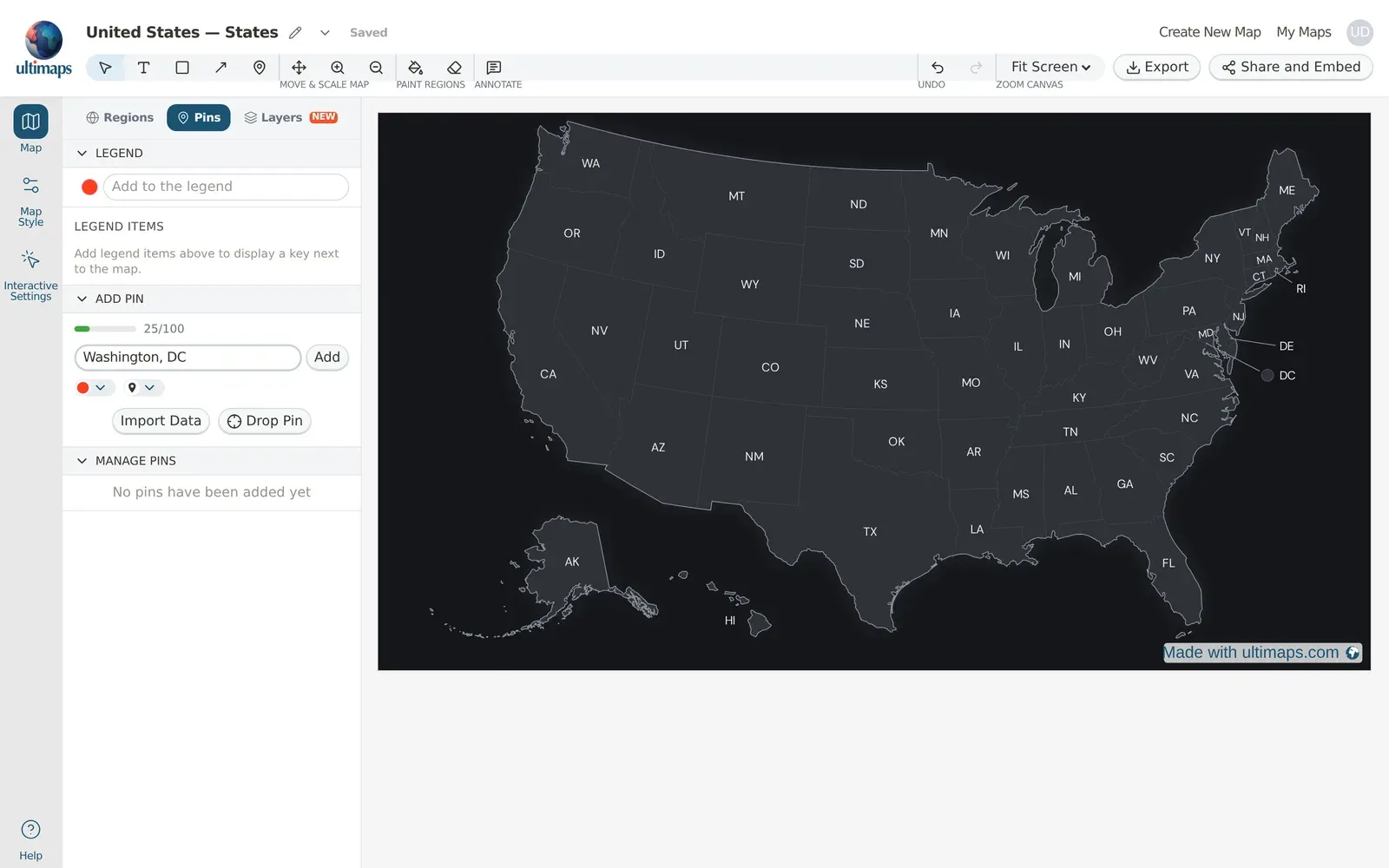
The bar above the field counts your address lookups for the month. Each time Ultimaps turns an address into a spot on the map, it uses one lookup. Guests get 20 a month, free accounts get 100 and Pro gets 5,000. This is a lookup limit, not a pin limit. There's no maximum number of pins on a map.
You can also add pins without using any lookups:
- Type coordinates instead of an address, like "40.72,-73.99".
- Click Drop Pin, then click the map where the pin should go.
- Use the Pin tool in the toolbar (the map-pin icon), then click anywhere on the map.
The color and icon menus next to the field set the style of the next pin. We picked red (#FC3D21).
Step 3: Style a pin and give it a text icon
Click a pin on the map. A small toolbar appears with Fill, Stroke and Icon, plus a trash icon to delete the pin. A pin you add by hand starts without a label, so the toolbar also shows Add Label.
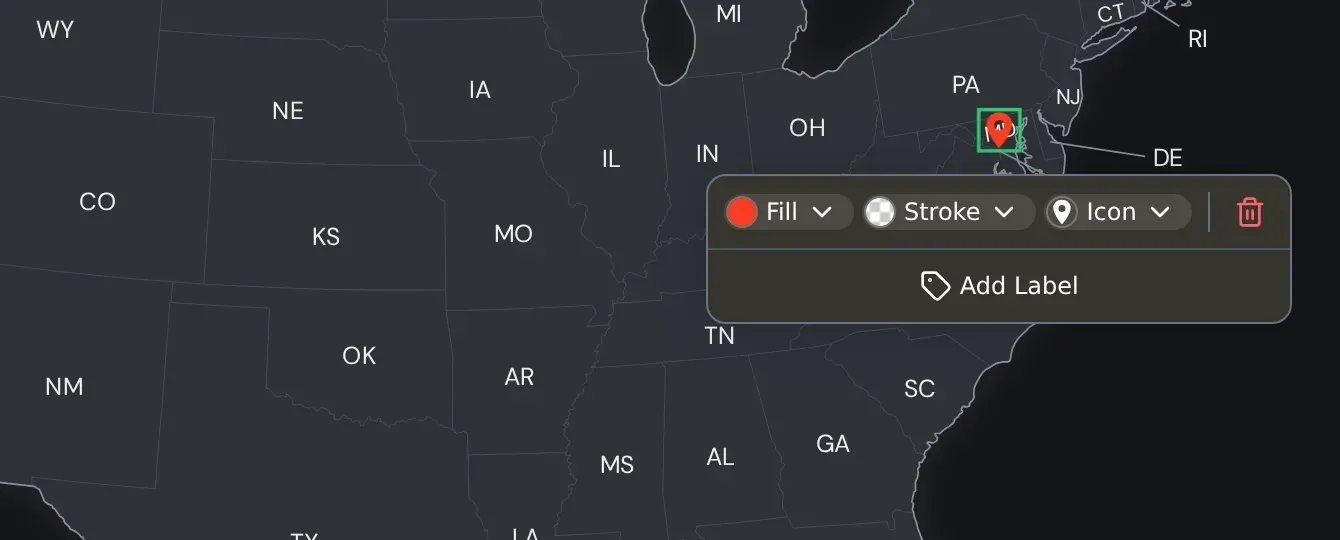
- Fill changes the pin color. Pick one from the Palette or open Custom Color and type a hex code.
- Stroke changes the pin outline.
- Icon opens the icon picker. It has three tabs: Icons for built-in shapes, Text & Numbers and Emoji. Size sets how big the pin is.
Text & Numbers turns the pin into a badge with up to 2 characters of your own text. Use it for numbers, initials or short codes. We typed "HQ", kept the round badge (there are three badge shapes) and set Size to 32 so the letters are easy to read.
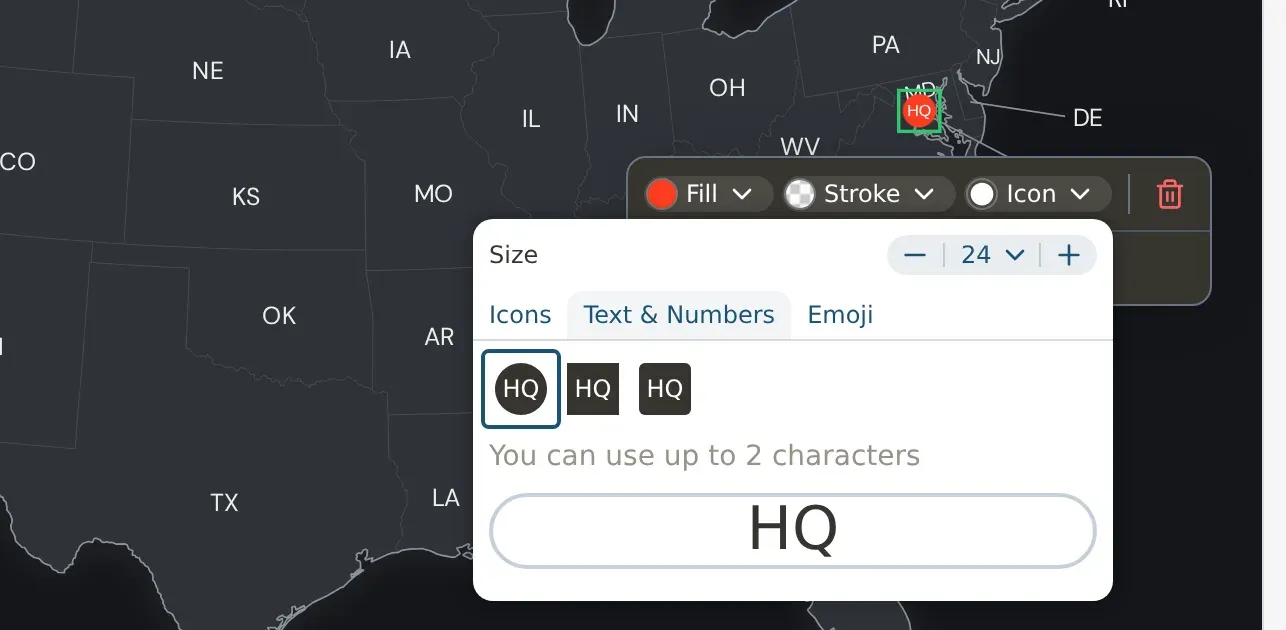
Then click Add Label. The label starts as the address, "Washington, DC". To change it, open the pin's row under Manage Pins (click the chevron), click the pencil next to Label Text, type the new text and click Save. We named it "NASA Headquarters".
Step 4: Make a map with pins from a spreadsheet
First, check your file. Put the address column first. The importer reads the first column as the address, even if another column is called "Address". If you have coordinates, put the Latitude and Longitude columns first instead. Ultimaps detects them by name and places the pins without using any lookups, so coordinates are the better choice for long lists.
Then:
- In the Pins tab, click Import Data.
- Drop your CSV or Excel file into the upload area. You can also paste a Google Sheets or Notion link, or paste your locations one per line.
- Check the Review Data screen. It shows how many addresses need a lookup ("9 addresses to geocode" for our list) and a preview of your data.
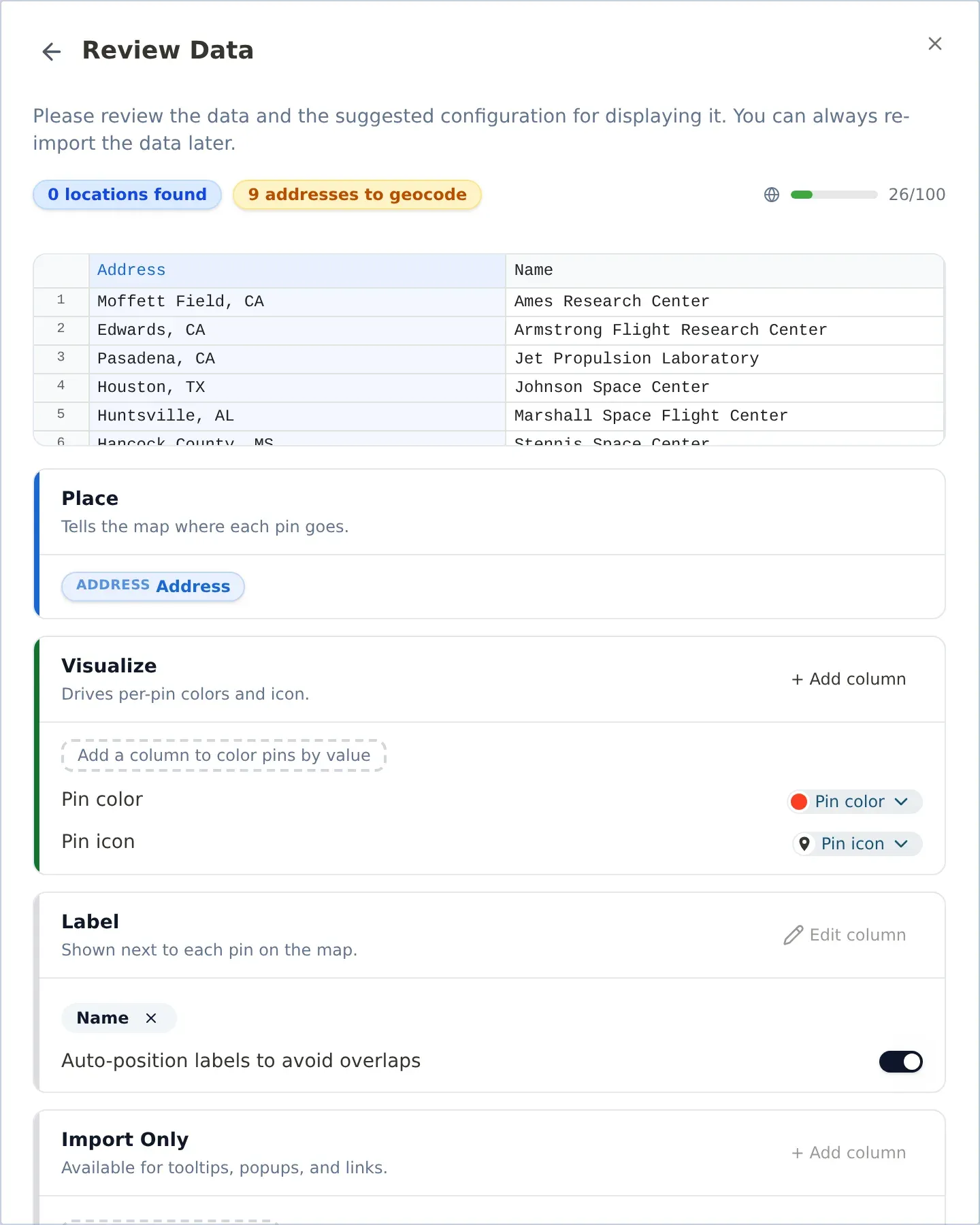
The screen has four cards:
- Place shows the column that decides where each pin goes. It should say Address, or Latitude and Longitude if your file has coordinates.
- Visualize sets the pin color and pin icon for all imported pins. We used the same red.
- Label sets the text shown next to each pin. If it shows the wrong column, click Edit column and pick the right one. We picked Name. Leave Auto-position labels to avoid overlaps on. It keeps labels apart where pins are close, like the three in California.
- Import Only keeps the other columns for tooltips, popups and links.
- Click Add 9 pins (the number matches your list). This is when the lookups happen, one per address.
If your map already has pins, you'll choose between Add to existing and Replace all. Add to existing keeps the pins you added by hand, like our HQ pin.
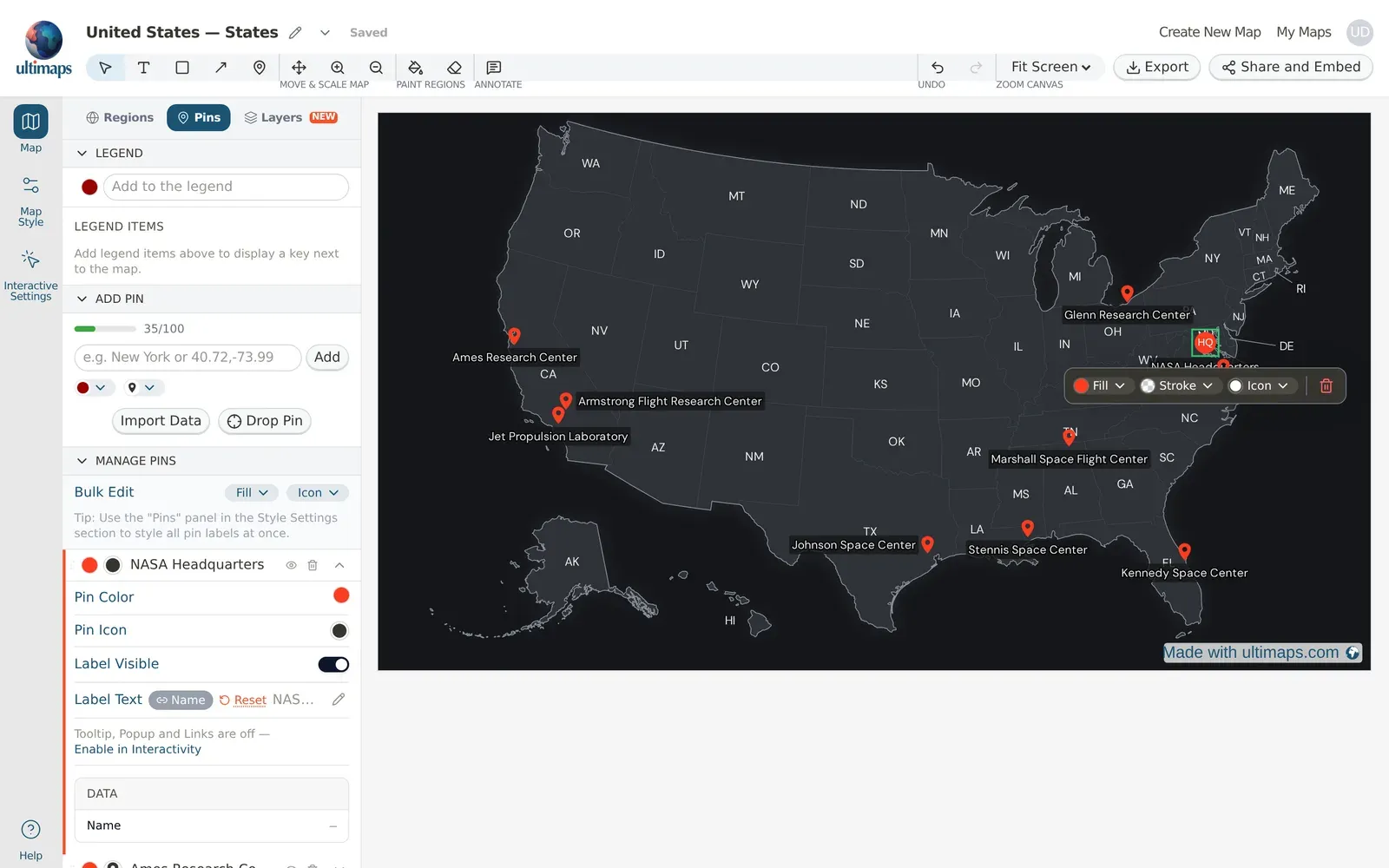
Your pins now show up under Manage Pins. From there you can:
- Change all pins at once. Use Fill and Icon in the Bulk Edit row.
- Edit one pin. Click the chevron on its row to open Pin Color, Pin Icon, Label Visible and Label Text, plus the pin's imported data.
- Hide or delete a pin with the eye and trash icons. Deleting asks you to confirm with Delete.
- Change which pins draw on top by dragging rows by the handle on the left.
Step 5: Use emoji for the pins that matter most
An emoji pin stands out from a row of identical markers. We gave Kennedy Space Center, where NASA launches from, a rocket, and Johnson Space Center, home of the astronaut corps, an astronaut.
- Click the pin on the map, then click Icon.
- Open the Emoji tab and type in the Search field. We searched for "rocket", which also finds the astronaut emoji.
- Click an emoji to use it. We kept the default Size, 24, the same as the other pins.
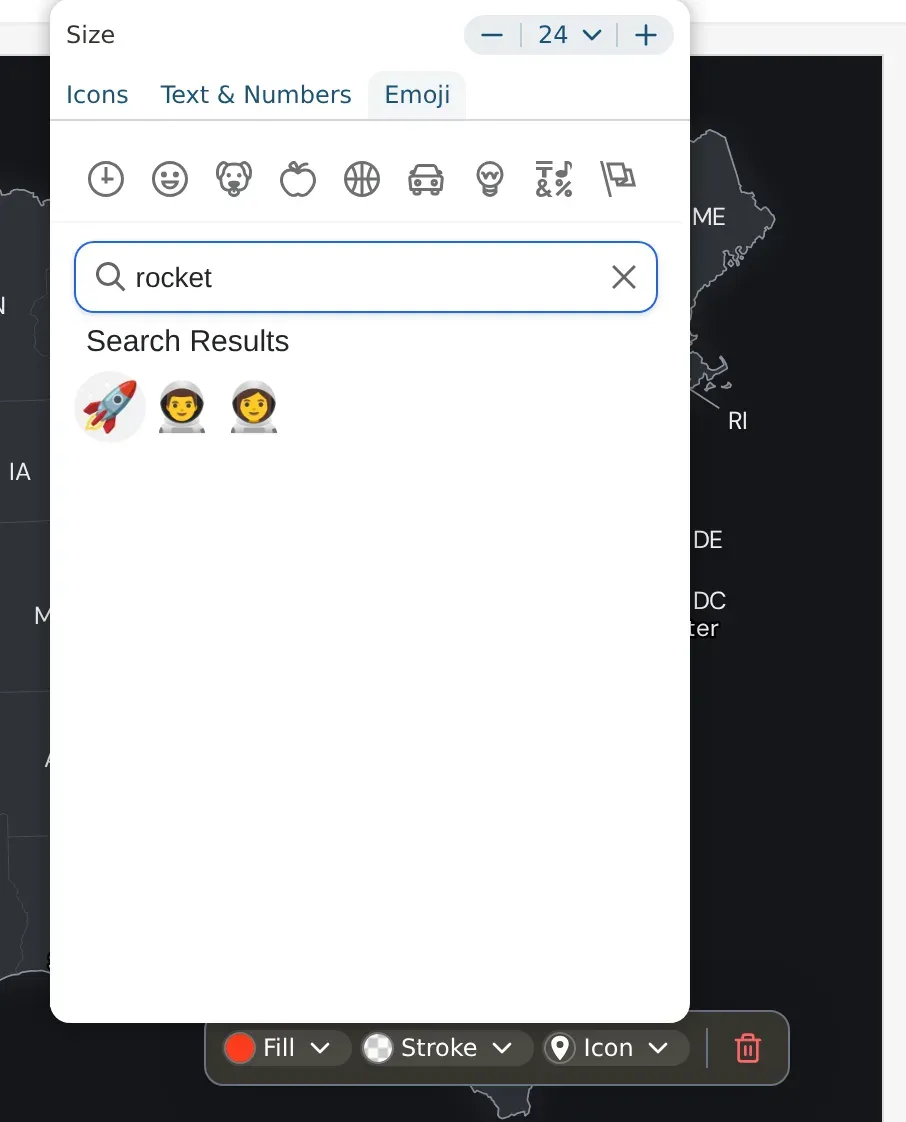
An emoji pin shows the emoji instead of a colored marker. Use them for a few pins that need attention. If every pin is an emoji, nothing stands out.
Step 6: Clean up the labels
State labels are on by default. With pin labels on the map too, the map gets busy. To turn the state labels off, open Map Style in the left rail, scroll to Region Labels and switch off Display labels.
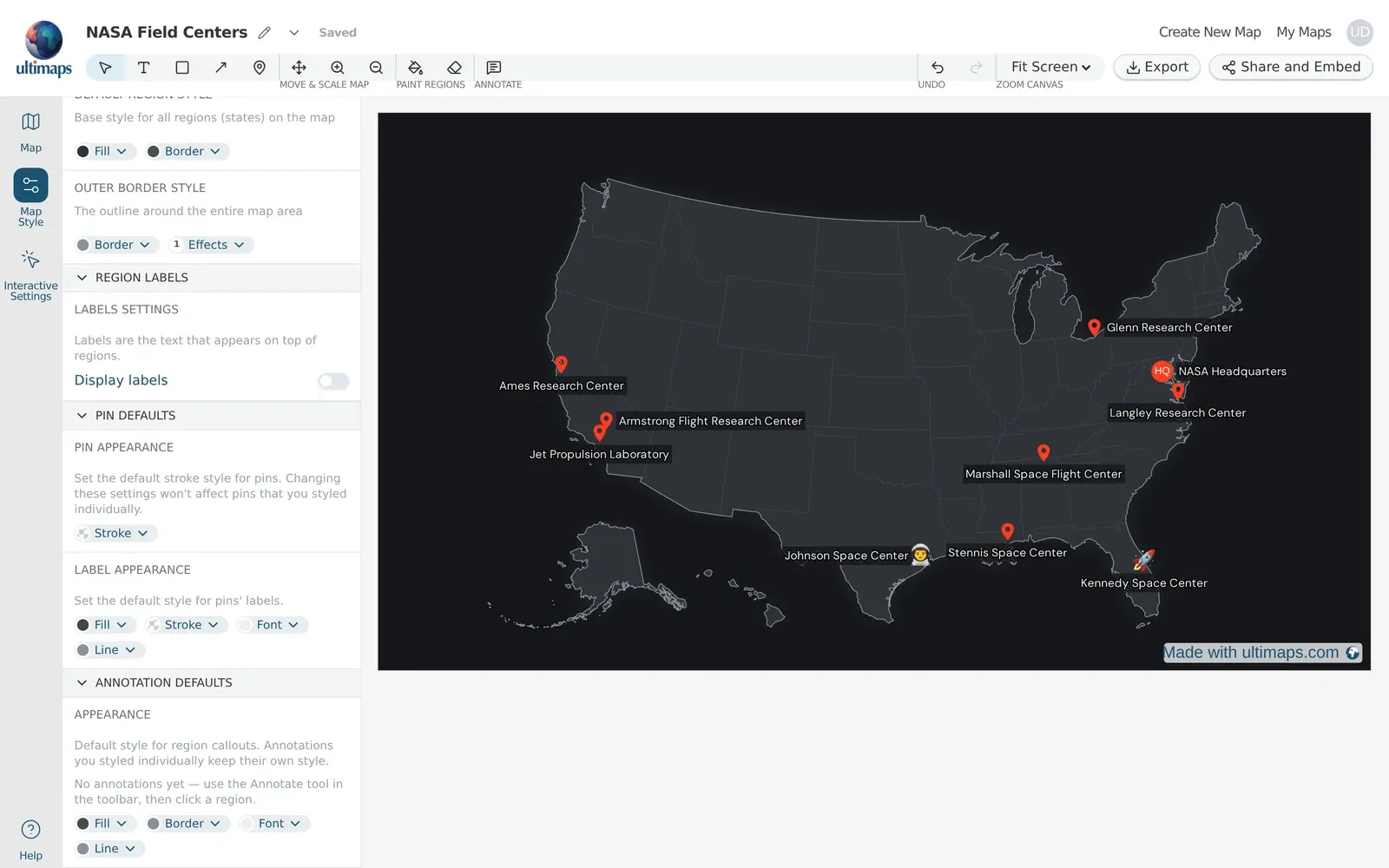
Then fix any pin labels that overlap. Click a label to open its toolbar. Label position puts the label above, right of, below or left of its pin. Our "NASA Headquarters" label sat on top of the Langley pin, so we moved it to the right, into the ocean. You can also click a label and then drag it anywhere. A thin line connects it back to its pin.
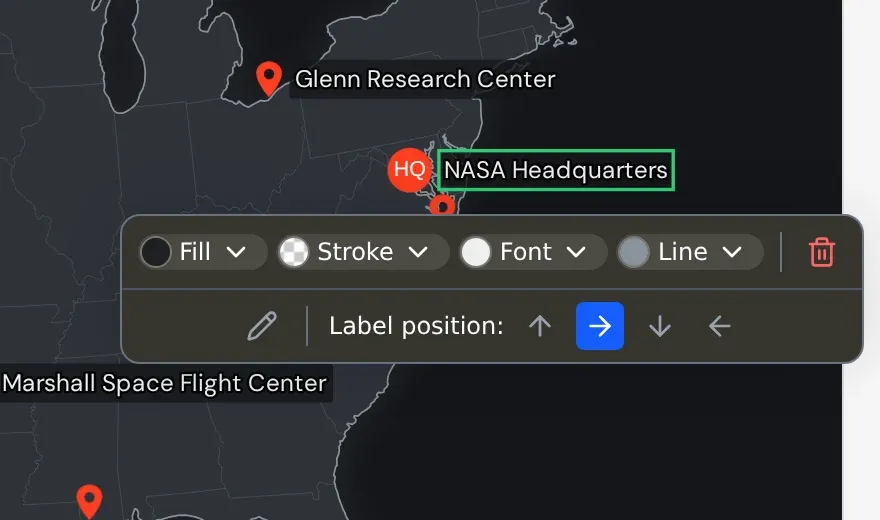
The same toolbar styles one label with Fill, Stroke, Font and Line. To change the font, color or background of all pin labels at once, open Map Style and use Label Appearance under Pin Defaults.
Step 7: Add a title and make room for it
- Click Text in the toolbar (the T icon).
- Drag a box on the canvas where the title should go. A single click isn't enough, so drag.
- Type the title and click anywhere outside the box to finish. We typed "NASA Field Centers".
- Click the title, then click Font. Pick a Font Family and a Font Size. We used DM Serif Display at 32.
- Drag the title into place. We centered it at the top of the map.
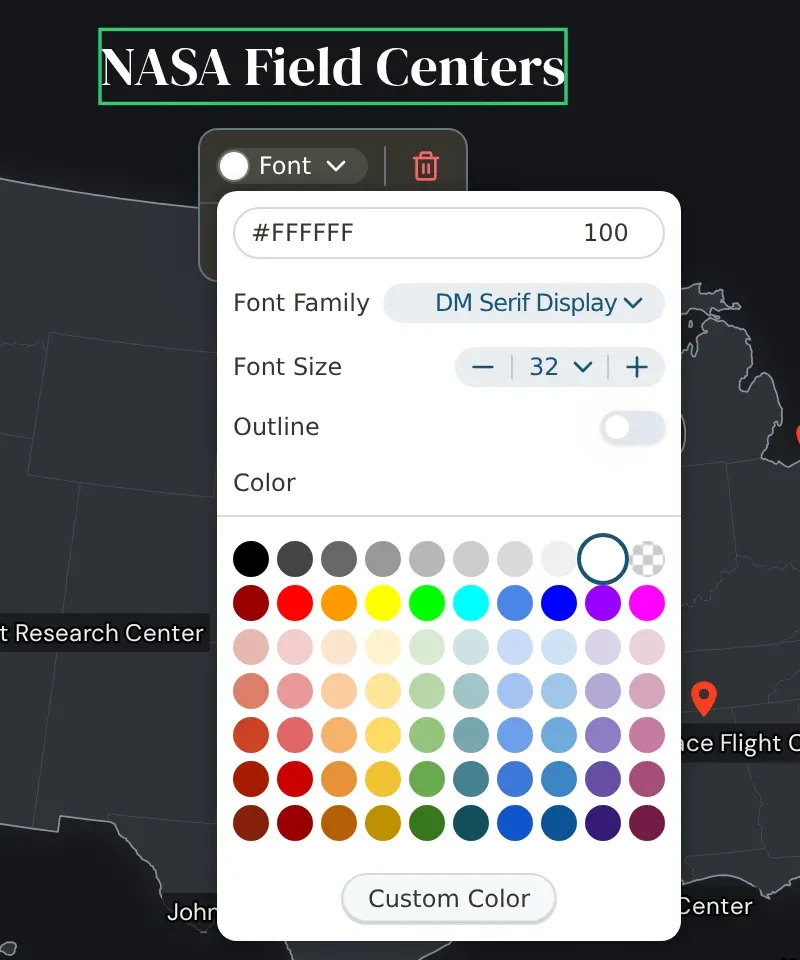
The map fills the canvas, so a title at the top sits on the map. To make room, shrink the map and move it down with the Move & Scale Map buttons in the toolbar:
- Click Zoom out (the magnifier with a minus) to make the map smaller. Each click shrinks it a little. One click was enough for us.
- Click Move (the four-arrow icon) and drag the map down until it clears the title.
- Click the Select arrow to go back to editing.
Pins and their labels move with the map, so you don't have to place them again.
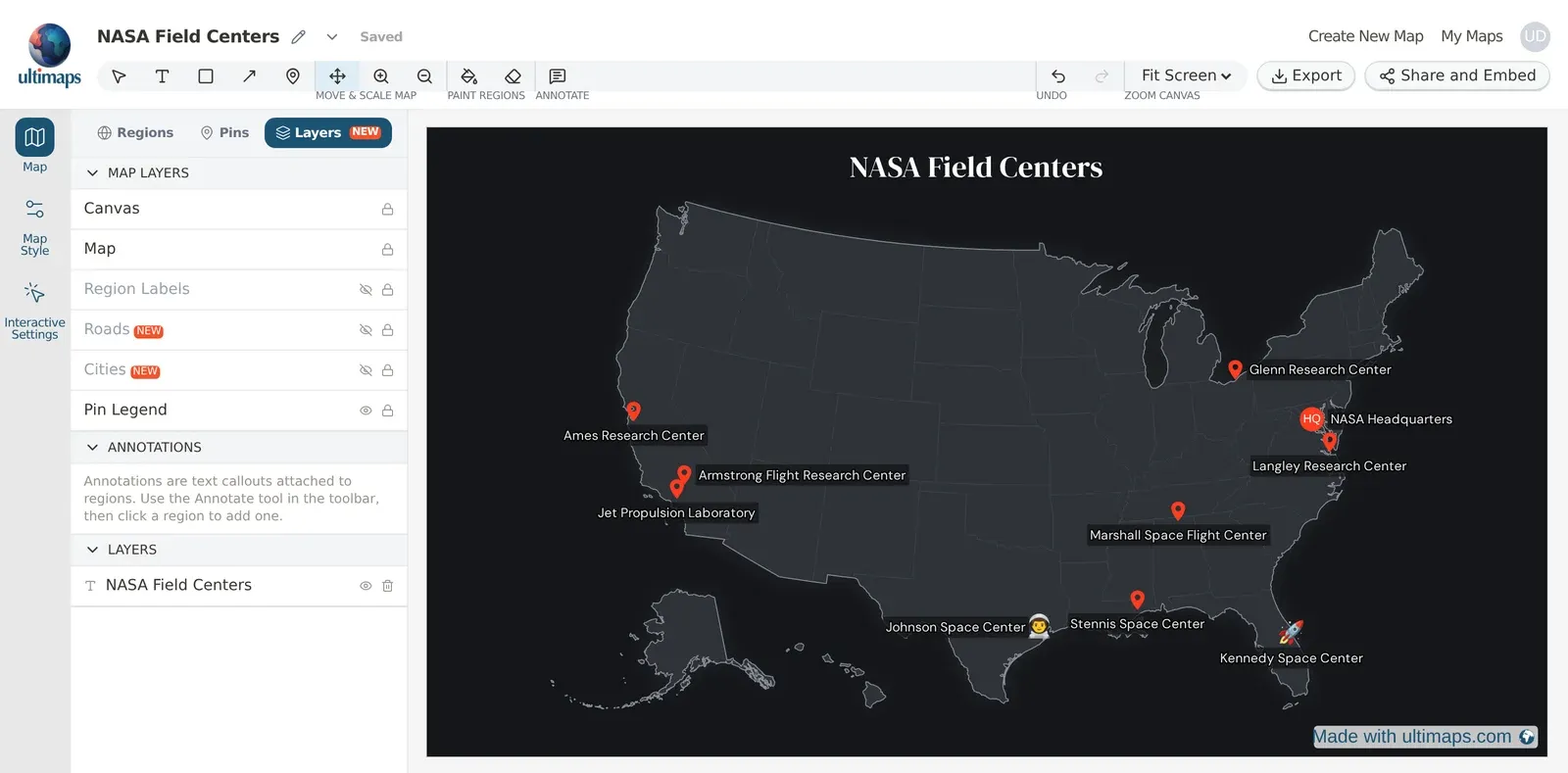
To name the map itself (the name in My Maps and on shared links), click the pencil next to the name at the top of the Studio.
You can also color the states, for example the ones with a NASA center, with the Paint Tool in the Regions tab. The US map with colored states tutorial covers that.
Step 8: Download or share your map with pins
To download it, click Export in the top right corner:
- Free download gives you a PNG at screen size with a small "Made with ultimaps.com" watermark.
- Professional is a one-time 24-hour pass for this map (€12.50). It gives you a high-resolution PNG, SVG and PDF, with no watermark and full commercial use. Use this for print.
To share it, first turn on tooltips for your pins. Open Interactive Settings in the left rail and switch on Pins under Hover Tooltip. The default content is Pin label only, so viewers see the pin's name when they hover over it.
Then click Share and Embed in the top right corner. The canvas switches to a preview of the interactive map, so you can hover over a pin to check the tooltip.
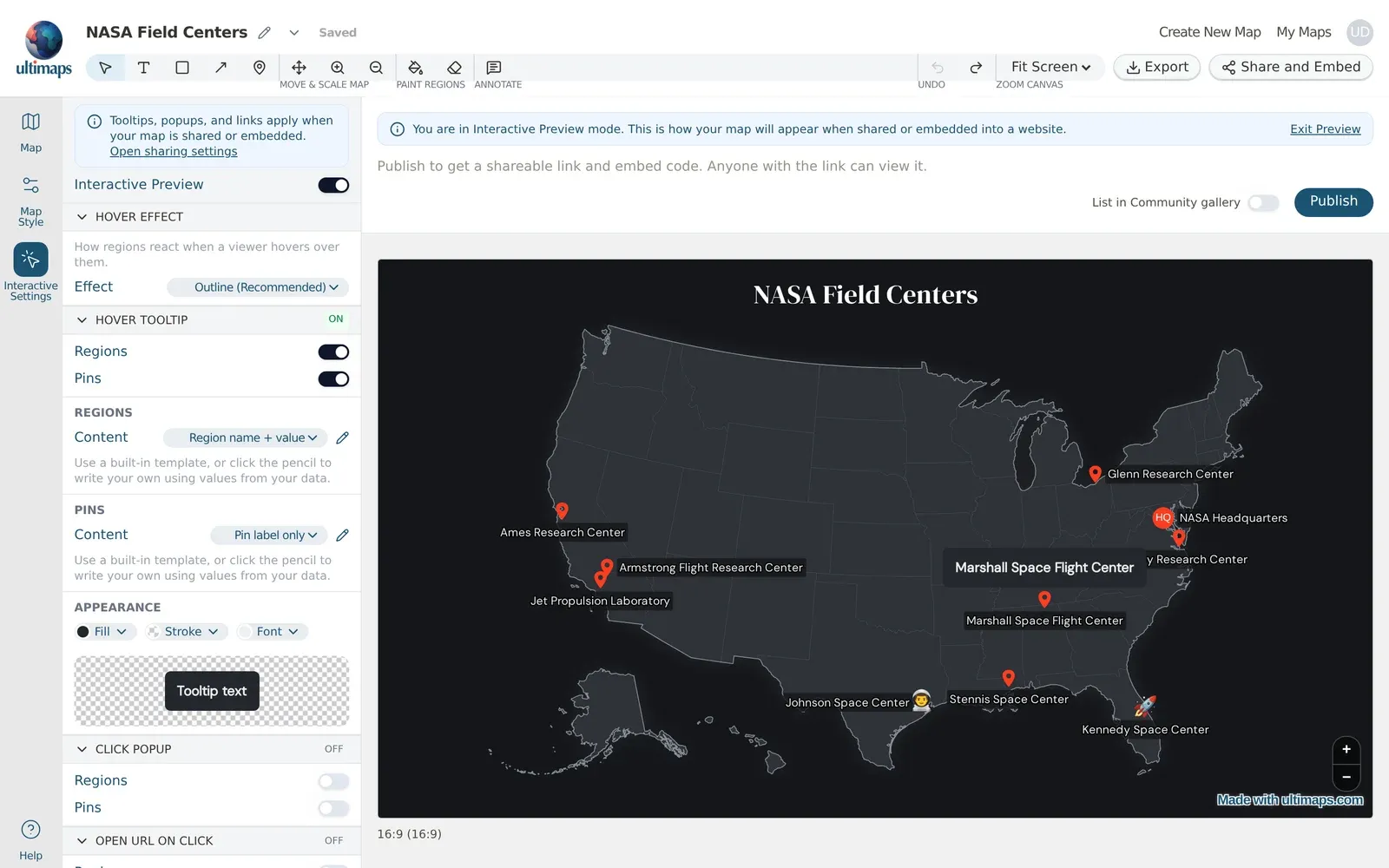
Then click Publish to get a link and embed code for your website. Publishing needs a free account. If you paste the link into Notion, WordPress, Ghost or Substack, it turns into a live embed.
To show more details when someone clicks a pin, or to open a web page, use Click Popup or Open URL on Click in Interactive Settings.
When another tool fits better
Ultimaps maps show states, countries and other regions. They don't show streets, and they don't give directions or routes. If you need a map with multiple locations at street level, like restaurants in one neighborhood, or viewers need directions to each pin, Google My Maps is the better fit.
FAQ
How do I make a map with pins for free?
Open Ultimaps Studio, pick a map, and add pins in the Pins tab by typing addresses or importing a file. Then click Export and choose Free download for a PNG. You don't need an account to make and download the map. A free account gives you 100 address lookups a month, and pins placed by coordinates or by clicking the map don't use any.
How do I put multiple pins on a map at once?
Put your locations in a spreadsheet with the address column first, then click Import Data in the Pins tab and upload it. You can also paste a Google Sheets link or a list of places, one per line. Every row becomes a pin.
How many pins can I add to one map?
There's no limit on pins per map. The limit is on address lookups: 20 a month as a guest, 100 on a free account and 5,000 on Pro. Coordinates, Drop Pin and the Pin tool don't use lookups.
Can I make a map with pins from Excel?
Yes. Upload the Excel or CSV file through Import Data in the Pins tab. Put the address column first, or put Latitude and Longitude columns first if you have coordinates. Then pick the label column on the Review Data screen.
How do I make a US map with pins?
Search for "united states" in Ultimaps Studio, open United States — States, and add pins in the Pins tab. Turn off state labels under Map Style > Region Labels if you want only the pin labels to show. The base map is the map of the United States.
Can I make a world map with pins?
Yes. Pick Map of the World — Countries and add pins the same way. You can type city names, addresses or coordinates. The base map is the world map.
Can I use emoji, numbers or text as pin icons?
Yes. Click a pin and choose Icon, or use Icon in the Bulk Edit row to change every pin at once. The Emoji tab has a searchable emoji picker. The Text & Numbers tab makes a badge with up to 2 characters, like "1", "A" or "HQ".
What happens when two pins are too close together?
At the scale of a whole country, places a few miles apart land on the same spot. Drag or reposition the labels so they don't overlap, use a map of a smaller area, or leave one of the pins out, as we did with Goddard Space Flight Center.
Next steps
- Getting Started: every way to build a map, plus styling, export and sharing in more detail.
- How to make a US map with colored states: color the states behind your pins.
- How to make a color-coded world map: the same workflow for the countries of the world.
- US Map Maker: a quick free tool for a one-off US map image.